PINVOU Guide
PINVOU is a desktop AI workspace that can call tools, work with files, build task context, and deliver artifacts. This guide follows the real workflow: check model availability first, then add files, confirm the plan, run the task, and review outputs in the artifact panel.

Quick start
When you open PINVOU for the first time, check the model status below the input box first.
- Click the Model button to see whether a model is available.
- If no model is available, choose Manage Models and add a local model or a compatible API.
- The cloud model credit purchase entry will open later.
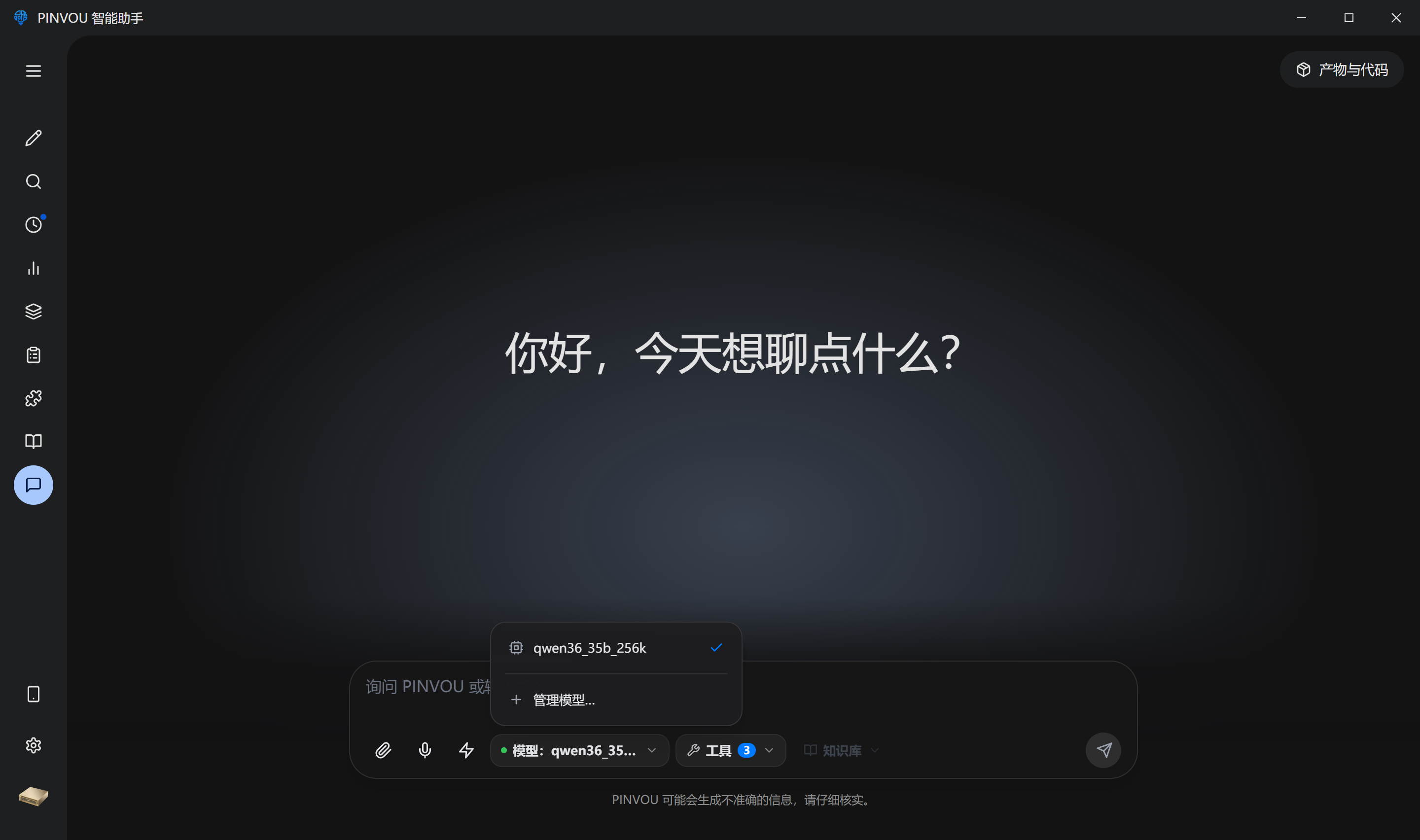
The highlighted area is the Manage Models entry.
Model configuration
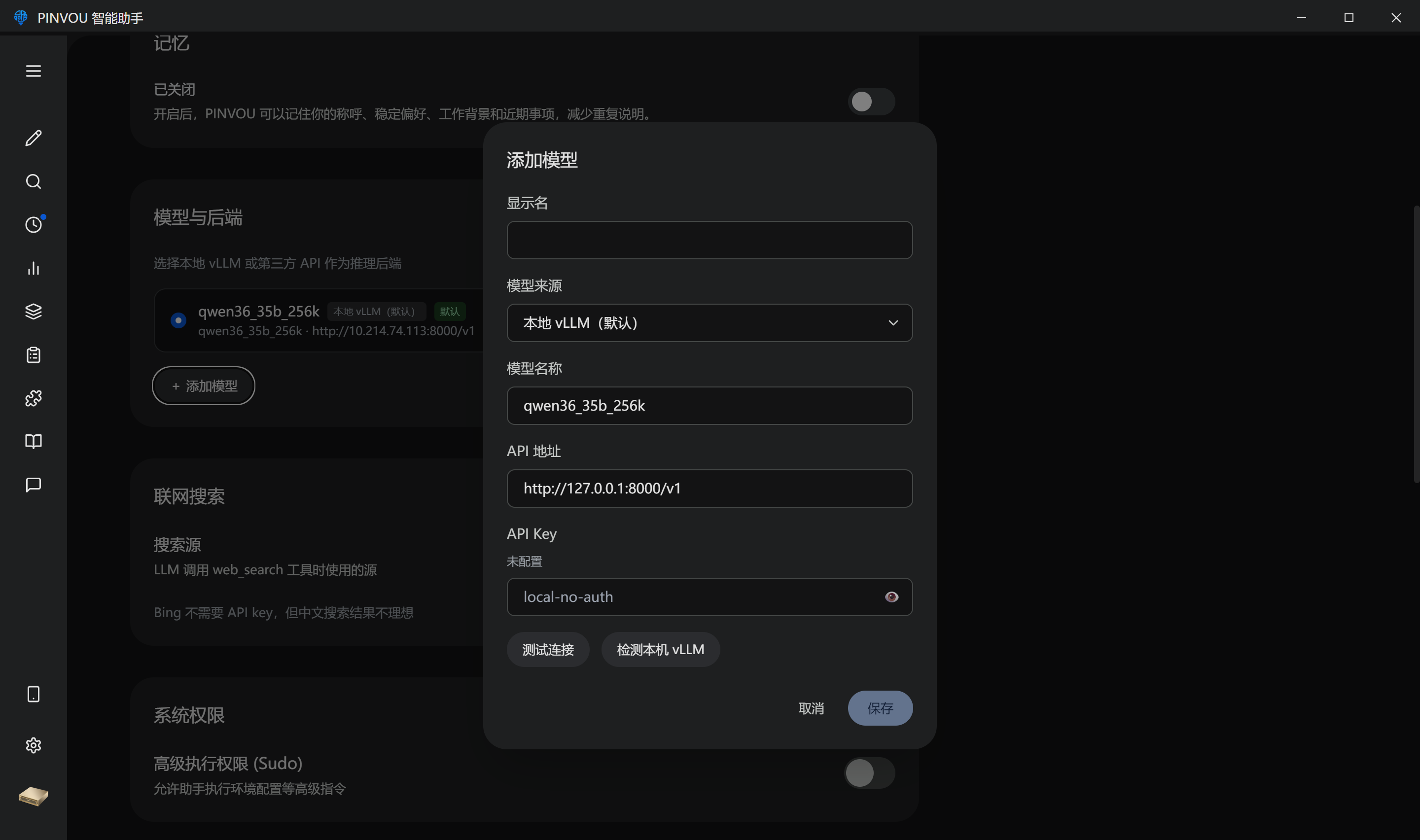
PINVOU supports local vLLM and OpenAI-compatible APIs. You can use local vLLM or configure compatible endpoints such as DeepSeek, Kimi, Qwen, Doubao, MiniMax, Zhipu, and MiMo.
Attachment analysis
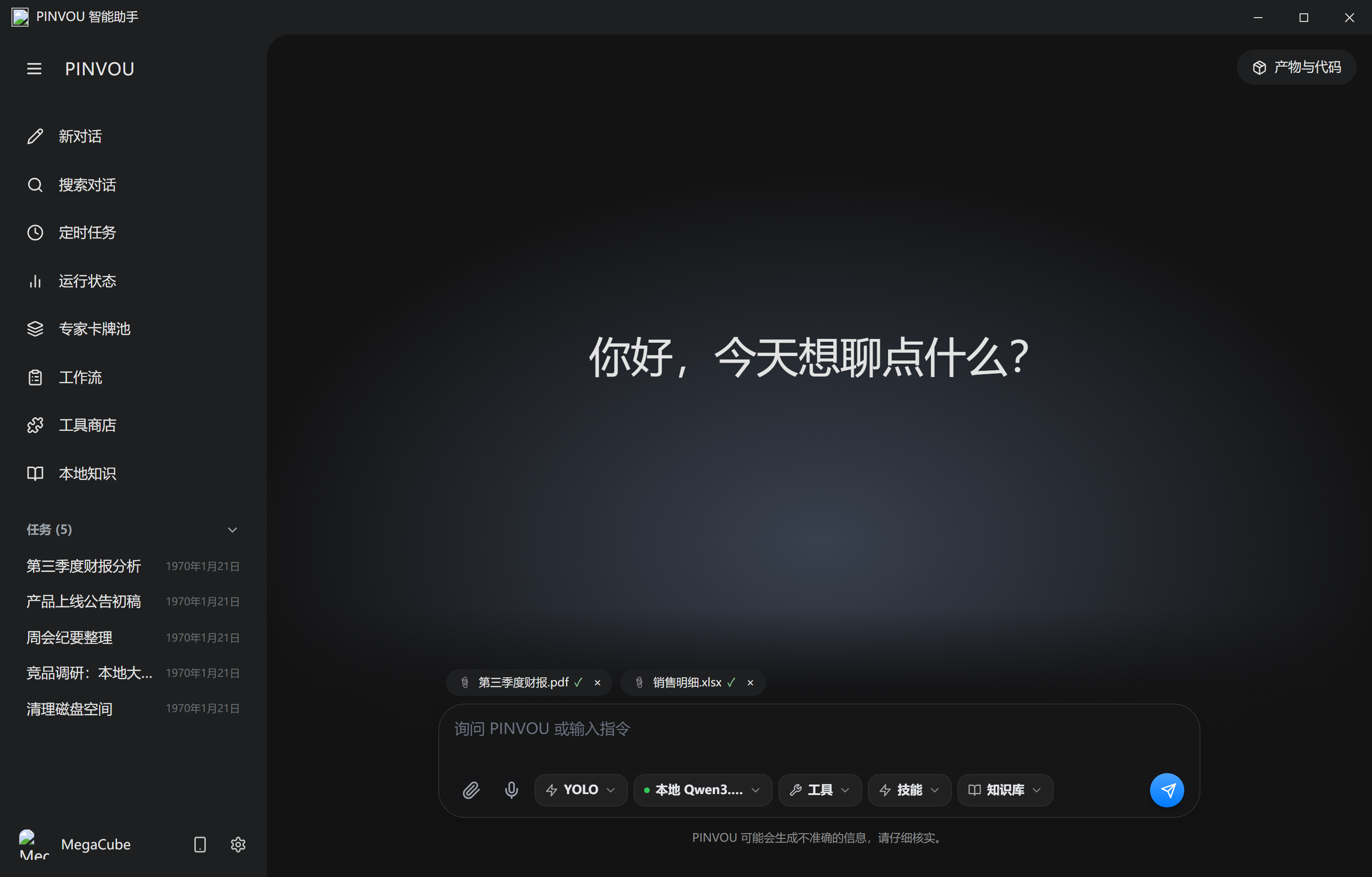
The input box supports attached files, drag-and-drop, and paste. PDFs, Office files, images, and text are parsed before they enter the context with your request.
- PDF works well for reports, contracts, and manuals.
- Office files work well for spreadsheets, meeting notes, and proposal drafts.
- Images work well for screenshots and visual issue triage.
Artifact delivery
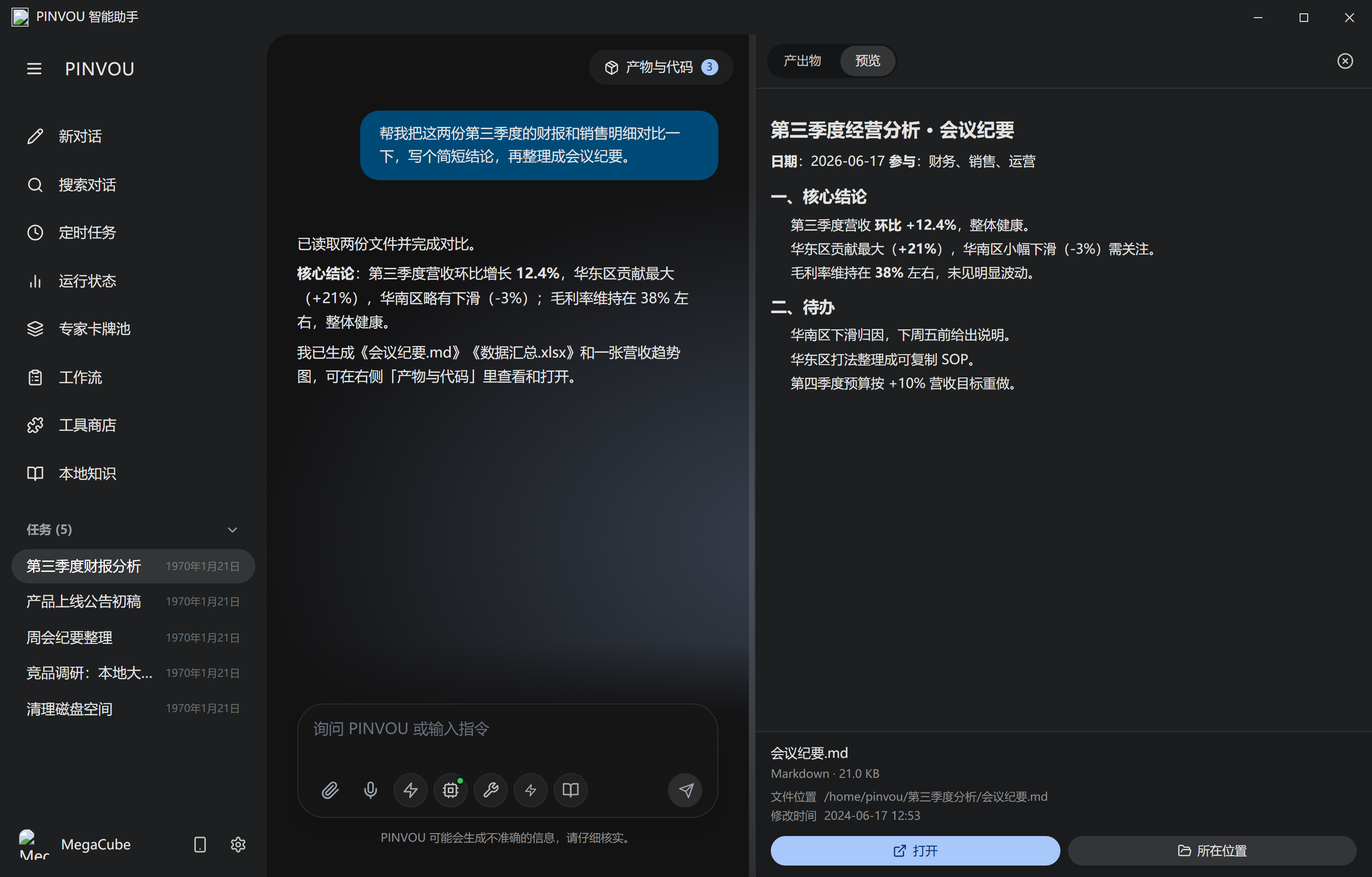
Files created or modified by AI are collected in the Artifacts and Code panel. You can preview Markdown, images, PDFs, and text, open them in system apps, or reveal them in the folder.
Tool store
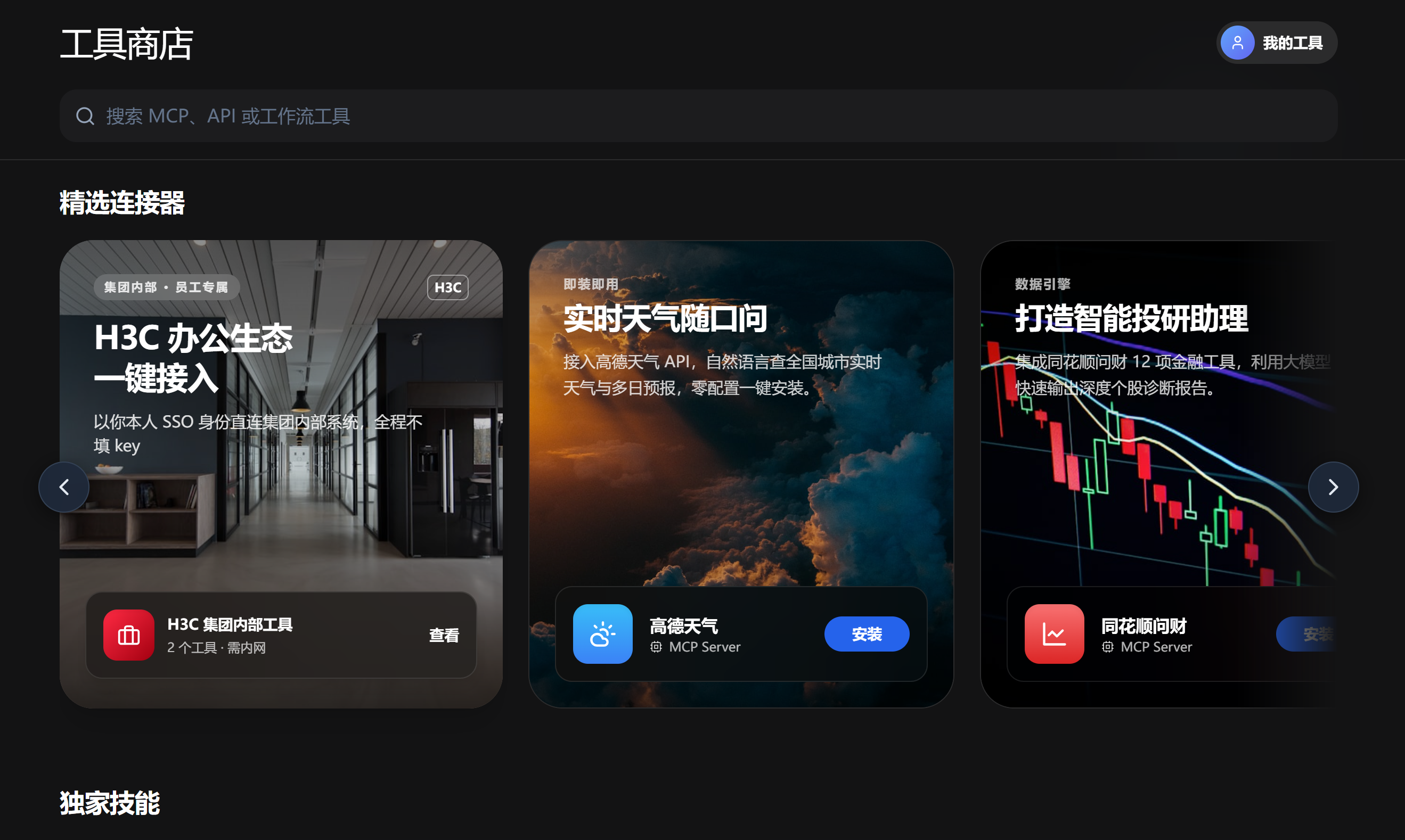
The tool store manages local MCP servers, remote MCP servers, CLI tools, and API connectors. After installation, AI can call Feishu, DingTalk, WeCom, Obsidian, enterprise knowledge bases, and other capabilities during tasks.
Expert card pool
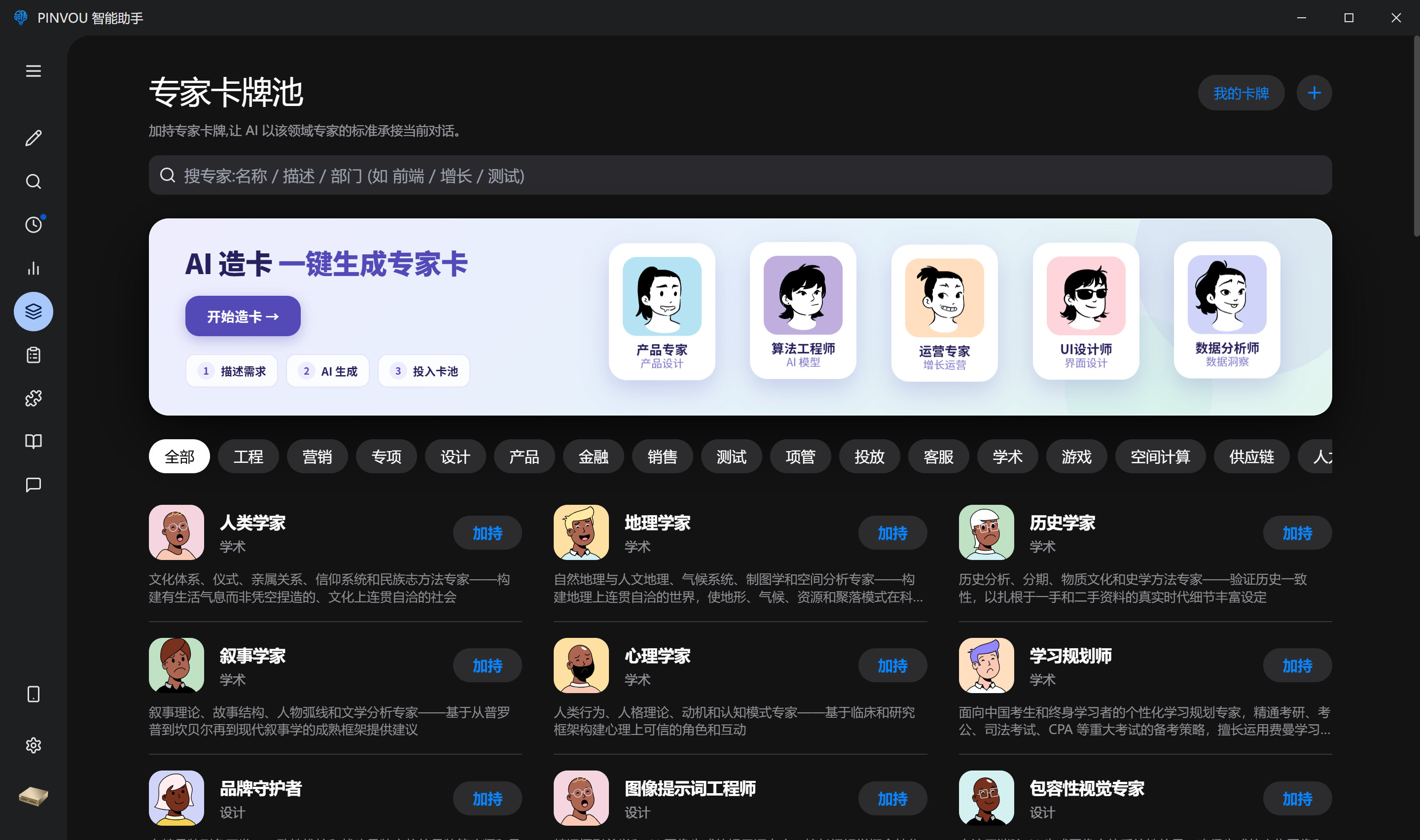
The expert card pool stores role settings, working methods, and task preferences for different domains. For writing, reports, data analysis, visual design, and similar work, choose a matching expert so AI follows a stable method.
- Choose an expert role by task type to avoid repeating background and requirements.
- Save common working methods as cards for reuse across sessions.
- Teams can maintain role standards so output style and process stay consistent.
Troubleshooting
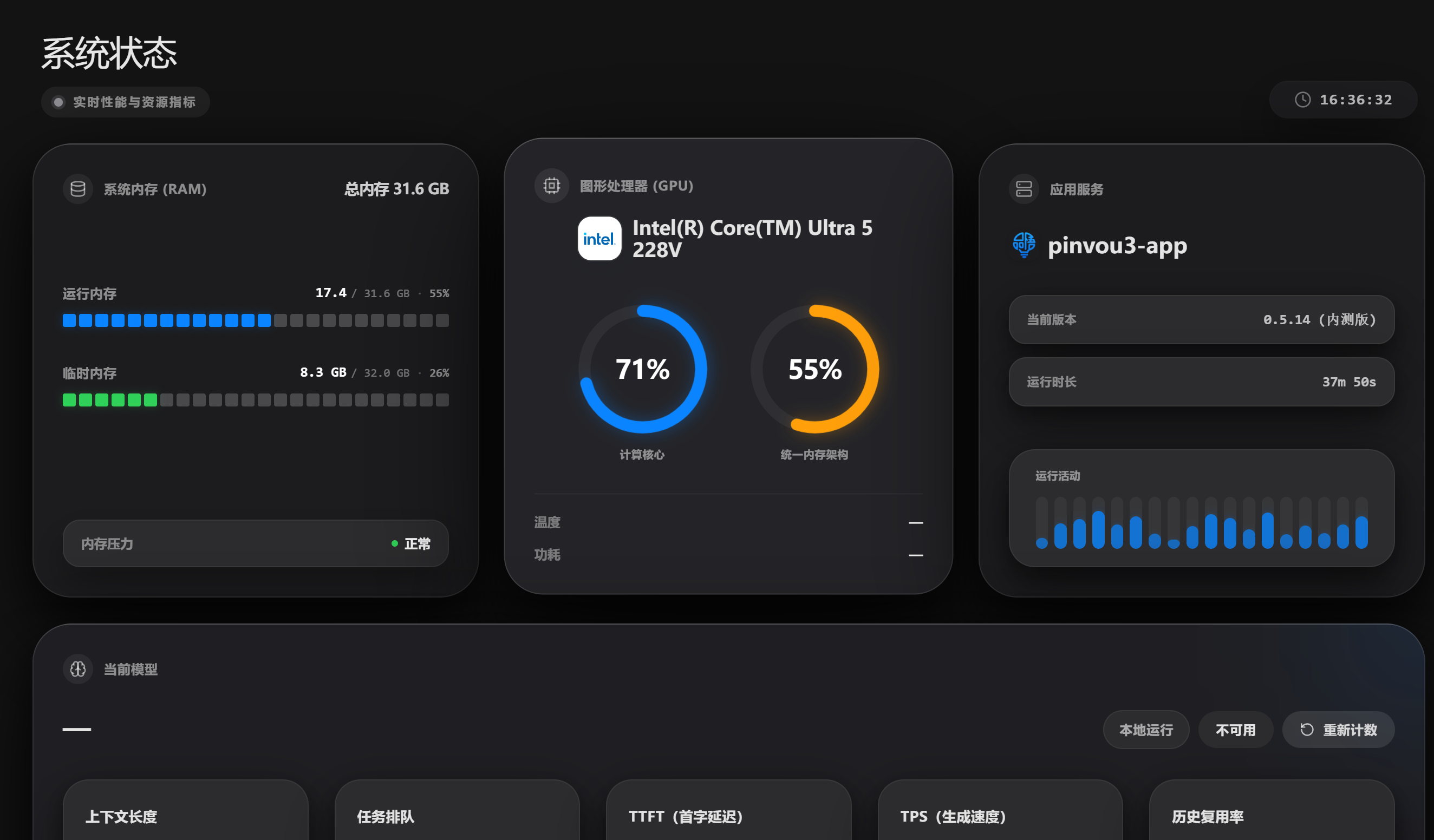
If the model does not respond, check the local model service, API key, network proxy, and system dependencies first. The runtime status page shows GPU, memory, disk, model service, and context usage.