
Complete these three steps first
PINVOU brings model management and everyday tasks into one app. To get started:
- Confirm MegaCube is powered on and networking and storage are working normally.
- Install the appropriate client on the computer running PINVOU, then download and start your target model from Model Store.
- Select the model in a conversation and send a simple question to confirm the connection and response.
Connect a Validated Model
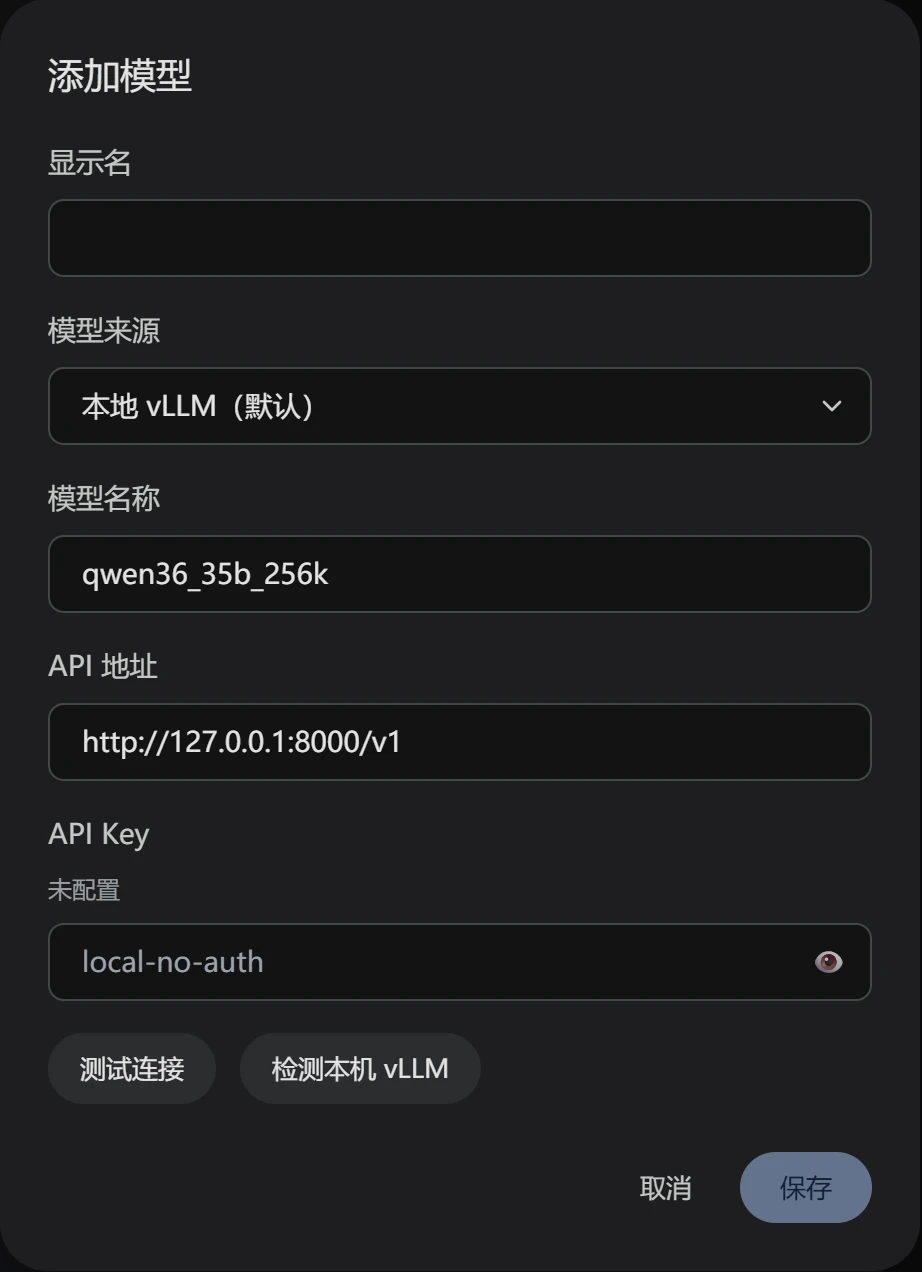
Start on the model validation page to find models and configurations suited to your task. Reports cover device counts, model weight formats, inference services, context lengths and concurrency requirements. Use your device's actual address when connecting; use the model name returned by the running service's /v1/models endpoint.
Connection Checklist
- The model service is running and its endpoint is reachable from the computer running PINVOU.
- The model ID, context length and service protocol match the deployment configuration.
- If the service requires credentials or is subject to LAN access policies, confirm permissions and network access in advance.
Enter the API endpoint, model ID and any required API key in model settings, then save and test the connection. When accessing Cube from another computer, use Cube's LAN address; 127.0.0.1 refers only to the current computer.
Download Models in PINVOU Model Store
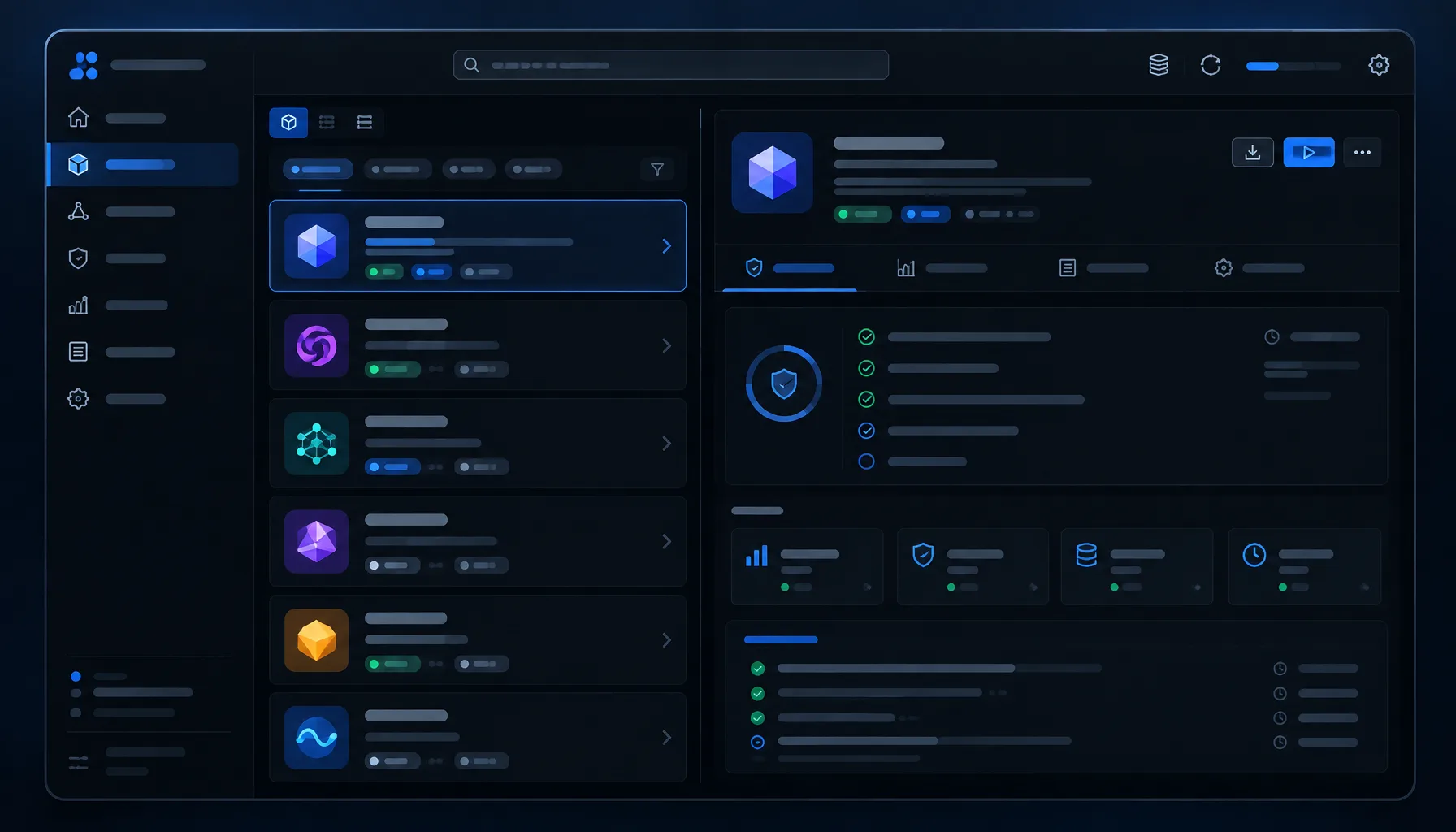
Model Store is built into PINVOU AI Agent. First check the model validation page for a model and MegaCube configuration suited to your task. Then open Model Store from PINVOU’s left sidebar and use model cards to download, deploy and manage models.
- Open Model Store and search by model name, provider or inference engine.
- Check the card for quantization format, device count, context length and model weight size, and confirm that you have enough disk space.
- Click Download, wait for completion and confirm that the model status changes to Installed.
- Deploy the model from its card to start the service, then check that it appears in the Running list.
- Return to a PINVOU conversation, select the model and send a short question to verify it.
Add Files to a Task
Attach PDFs, Office documents, images or text to PINVOU and describe the result you need. A specific task makes it easier to check whether the output meets expectations.
- State the goal first, for example: summarize this in one page, or extract delivery terms from this contract.
- Specify the format next, such as Markdown, a table, a presentation outline or a list with references.
- Set boundaries last, such as using only attachment content, preserving original numbers or flagging anything uncertain.
Document parsing and image understanding depend on the file format, model and enabled tools. Start with a small file and check filenames, key numbers and source references in the result.
Connect PINVOU to Tools
Tool Store manages MCP integrations, CLI tools and API connectors. After installing and authorizing a tool, try reading information first to check permissions, connectivity and results.
Tasks to Try First
- Read a specific knowledge base page and include a source reference.
- Organize the result into a file rather than directly modifying a business system.
- Show the plan before execution, and obtain user confirmation before writing to external systems.
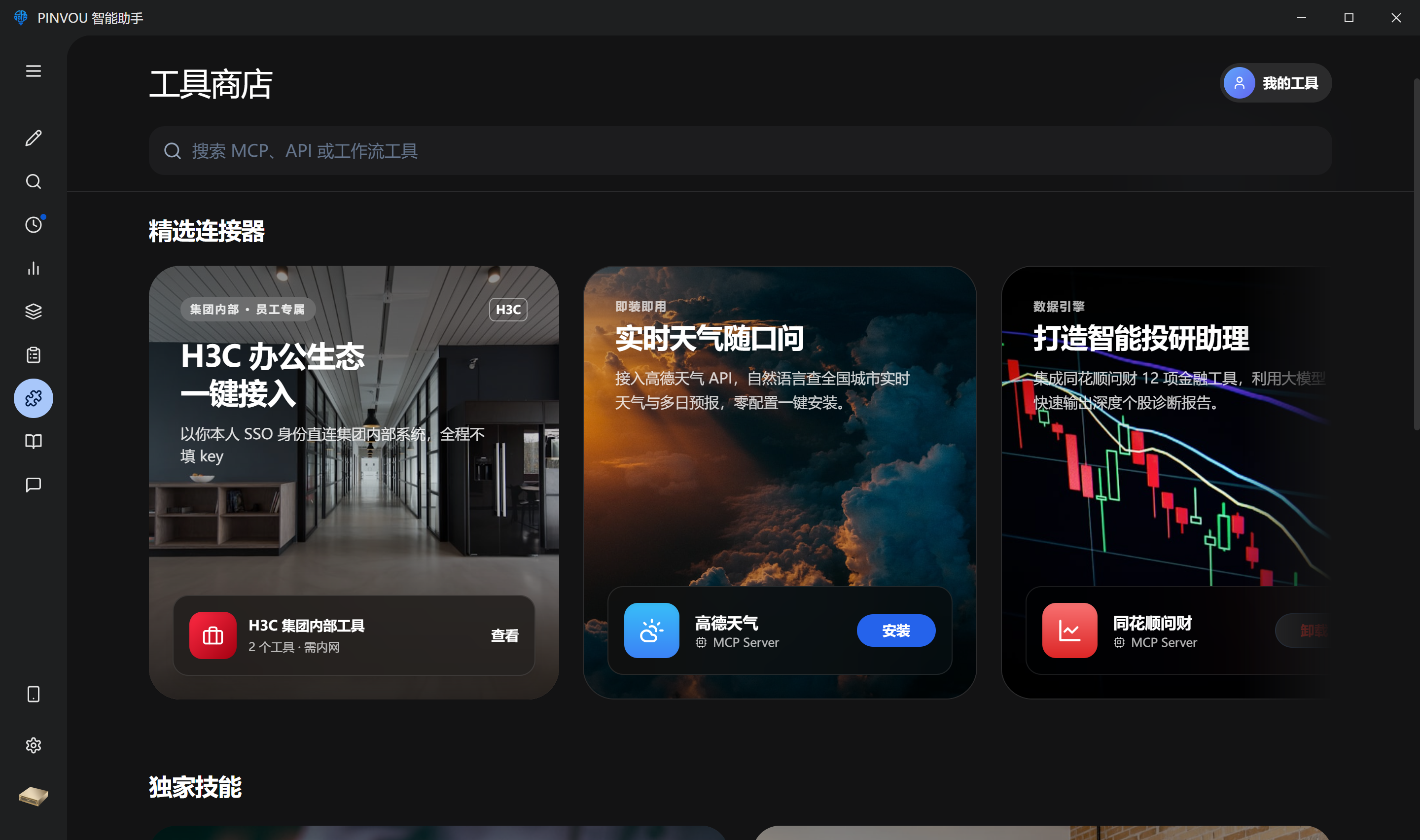
View tool installation, authorization and verification steps →
Check and Deliver Results
Files generated or edited by PINVOU appear in the artifacts and code panel. Preview them in the app and check facts, formatting and references. Then open them in another desktop application to continue editing or share them with your team.
Preview
Review documents, images, spreadsheets and text in the task context.
Refine
Identify specific issues and continue iterating within the original task context.
Deliver
Open the file’s folder or another desktop application to continue working with your team’s usual tools.
Save Team Expertise as Expert Cards
The expert card library stores roles, working methods and task preferences. Choose a card for business writing, reports, data analysis or visual design to avoid repeating the same context and requirements.
- Choose a role by task type for more consistent output formats and working steps.
- Save common methods as cards and reuse them across conversations.
- Use them with local models on MegaCube so your team can keep control of its data and processes.

Troubleshoot One Layer at a Time
When a model does not respond, identify where the problem occurs before changing settings. Check the device, model, network and task in order, and record error timestamps and logs.
- Device Layer: Check MegaCube power, system status, storage and memory.
- Model Layer: Check model weights, the inference service, ports and service logs.
- Connection Layer: Test addresses, ports, credentials and proxies from the computer running PINVOU.
- Task Layer: Shorten the input and remove attachments and tools to complete a minimal request first.