PINVOU / Features

Tasks, tools and skills
working together

Use scheduled tasks, business tools and reusable team skills with models on MegaCube. Get work done and monitor your services in one place.

Bring AI capabilities
into your workflow

Schedule tasks, use tools to gather information, apply methods saved as skills and review results in the app.

01 / Scheduled Tasks

Run recurring work on a schedule

Create scheduled tasks with instructions for recurring work such as morning briefings, weekly reports and follow-ups. Tasks require available model services, the necessary tool permissions and a running local device.

  • Create recurring information summaries and reminders in a consistent format.
  • Preserve task context to reduce repeated input.
  • Keep the device and model services running so tasks execute on time.
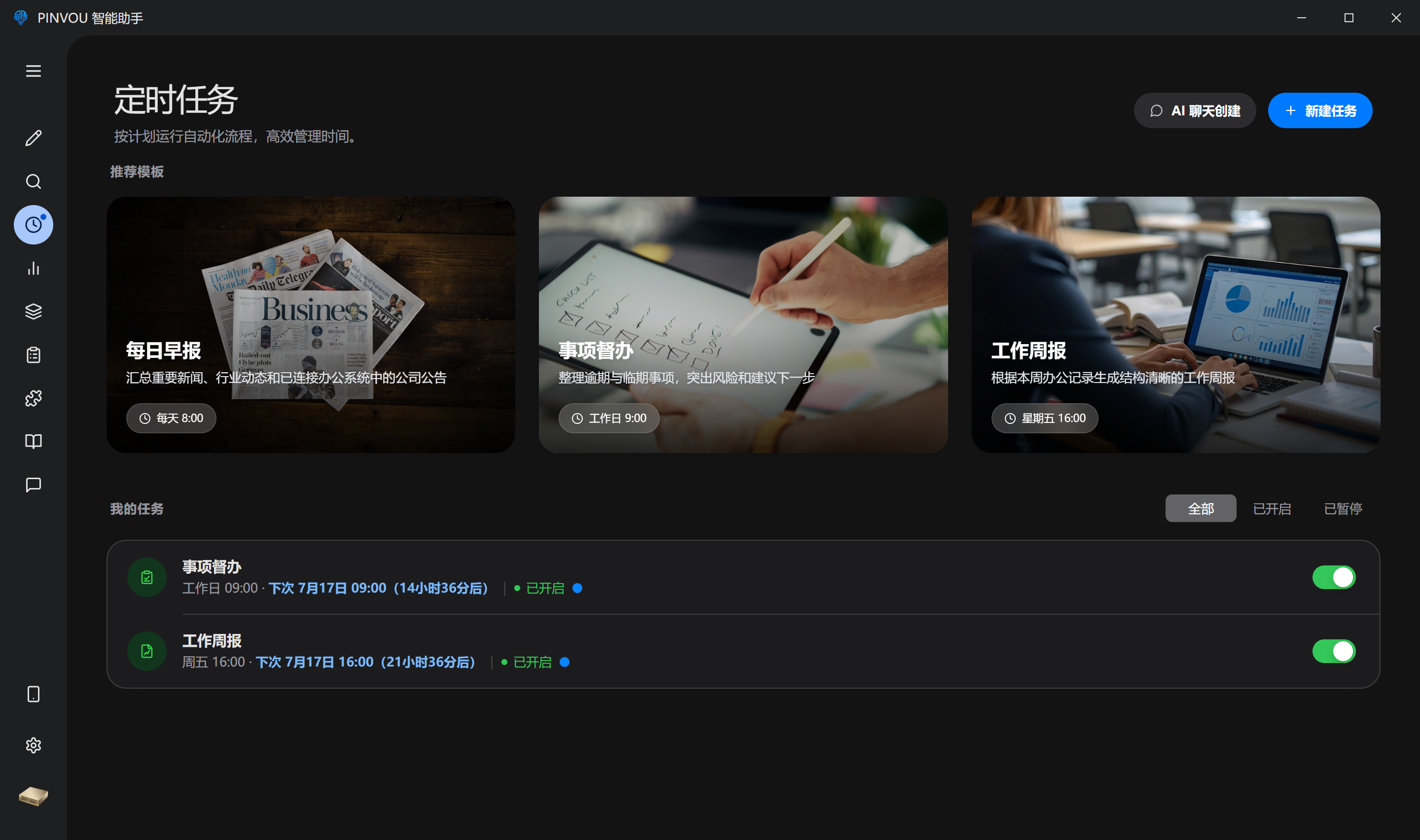
PINVOU scheduled tasks interface illustration
Scheduled Tasks · PINVOU Interface
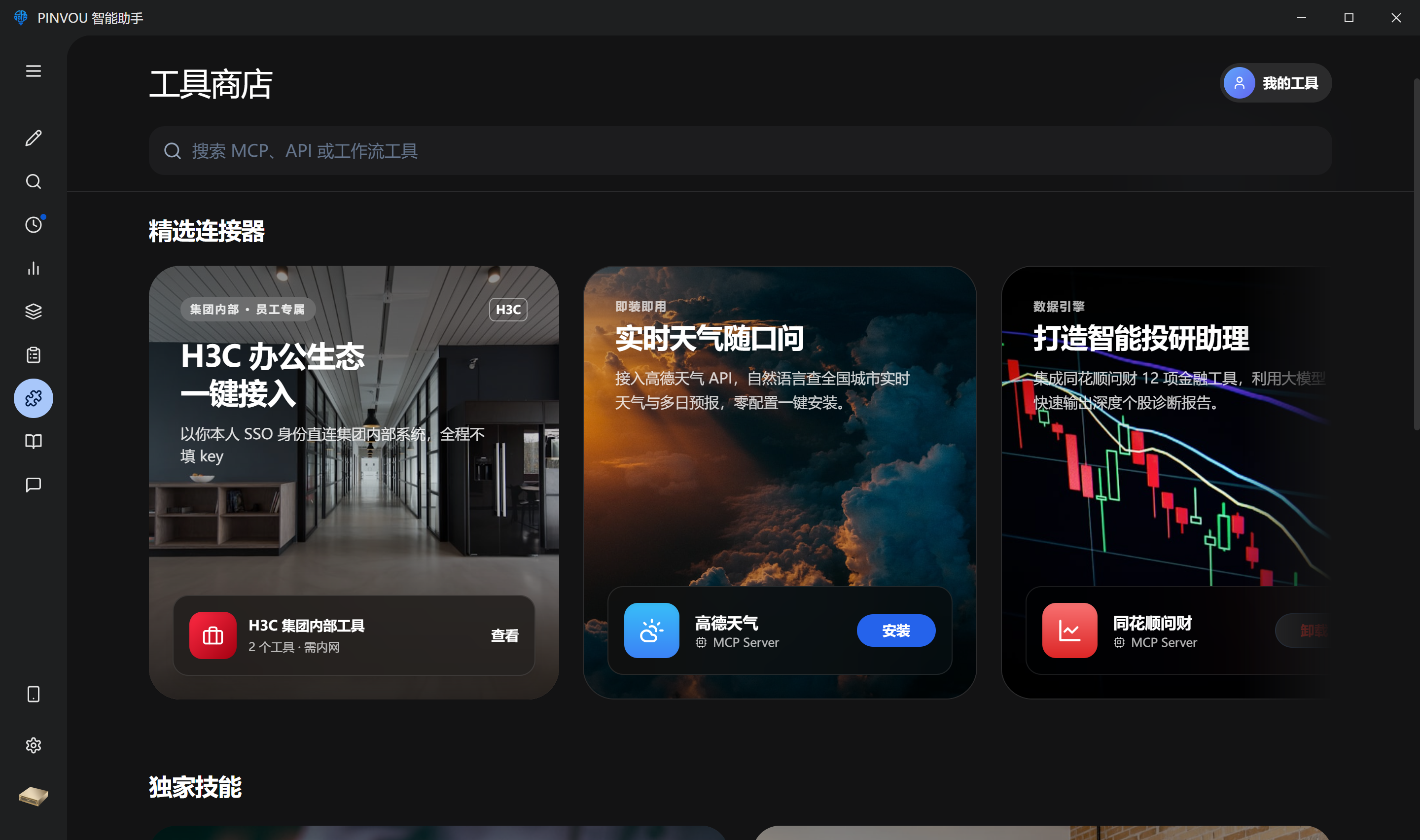
02 / Tool Store

Bring business tools into your workflow

Manage MCP integrations, API connectors, CLI tools and internal connectors in one place. Models can read information, use tools and produce results within the permissions you grant. Available tools depend on installation, permissions, connectivity and deployment configuration.

  • Configure read, create and edit permissions for your business needs.
  • Review tool purposes, authorization scope and execution results.
  • Connect to internal enterprise services and external applications.
PINVOU Tool Store interface illustration
Tool Store · PINVOU Interface
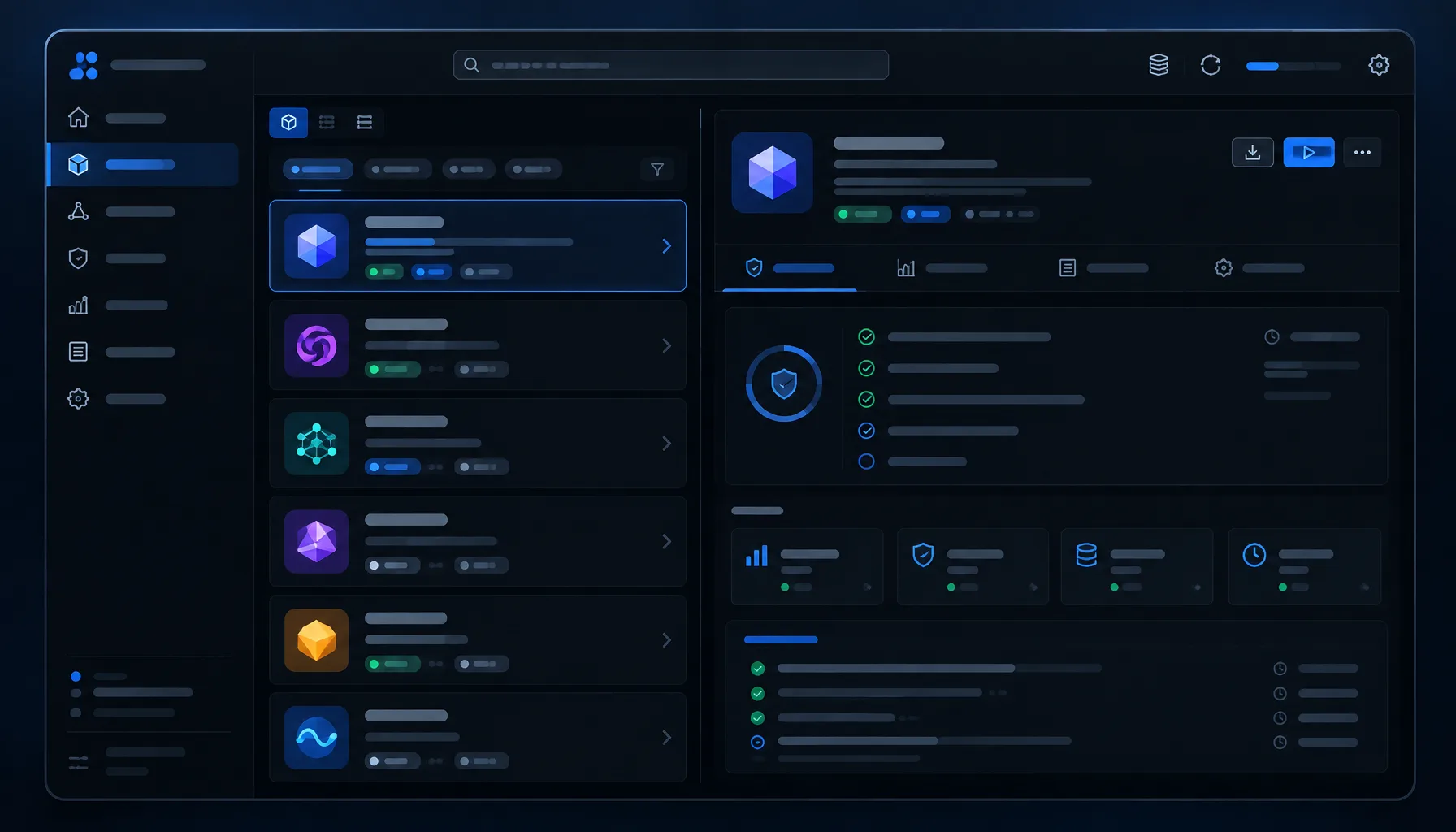
03 / Model Store

Download and manage models within PINVOU

Check the model validation page for capabilities, limitations and deployment requirements. Use PINVOU Model Store to download, install, start and manage models. A separate local model management application is no longer needed.

  • Search models, providers and inference engines to quickly find available cards.
  • Distinguish downloadable, installed and running models to avoid repeated operations.
  • Deploy after downloading, then return to a conversation to verify a real task.

View the model download guide →

PINVOU Model Store interface showing downloadable, installed and running models
Model Store · PINVOU Built-In Interface Reference
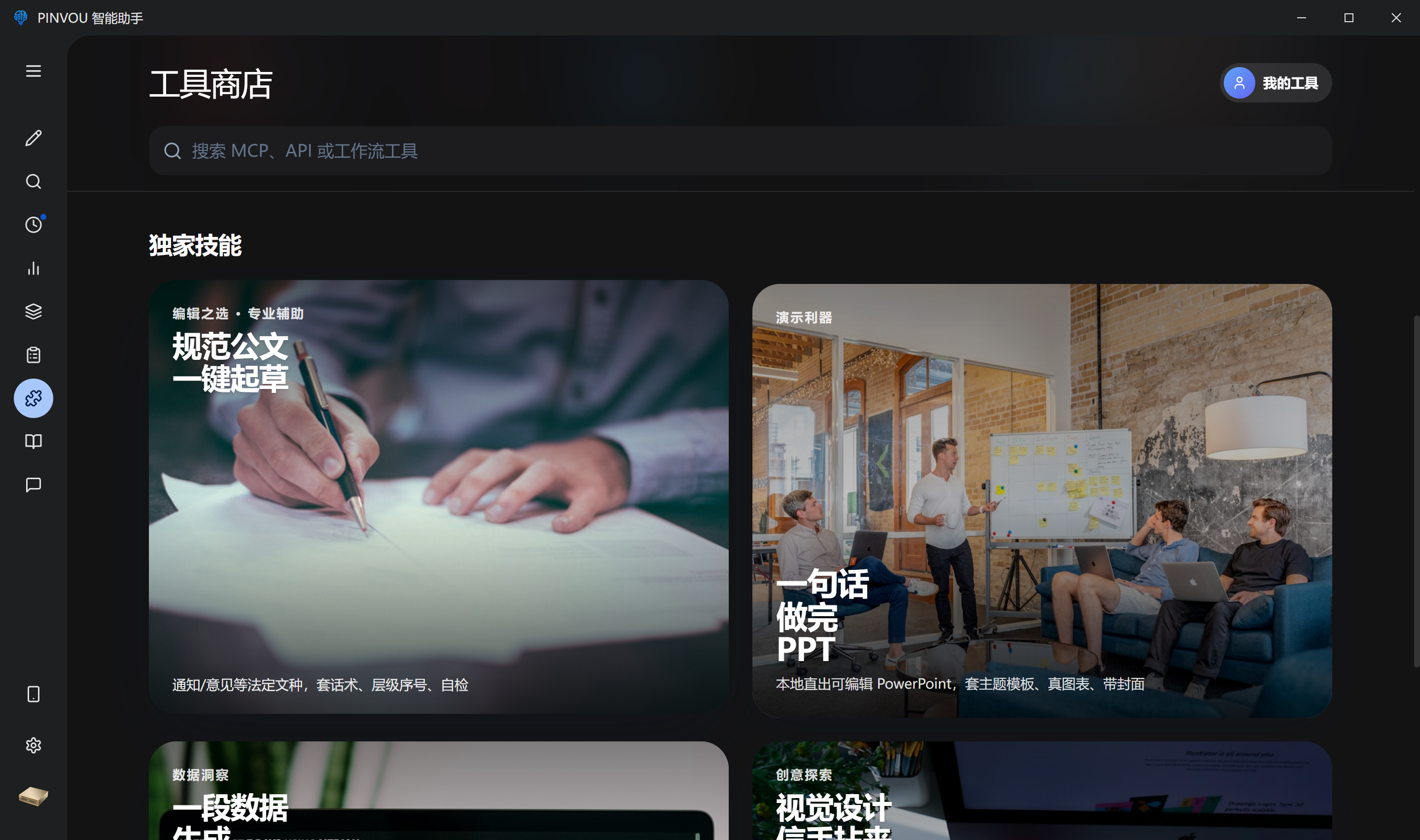
04 / Custom Skills

Turn team methods into reusable capabilities

Save your team’s roles, working methods and output formats as skills. Reuse them for business writing, presentations, data analysis and visual design.

  • Describe methods with clear inputs, steps and output requirements.
  • Reuse the same team standards across different tasks.
  • Use local models to keep control of your data and processes.
PINVOU custom skills interface illustration
Custom Skills · PINVOU Interface
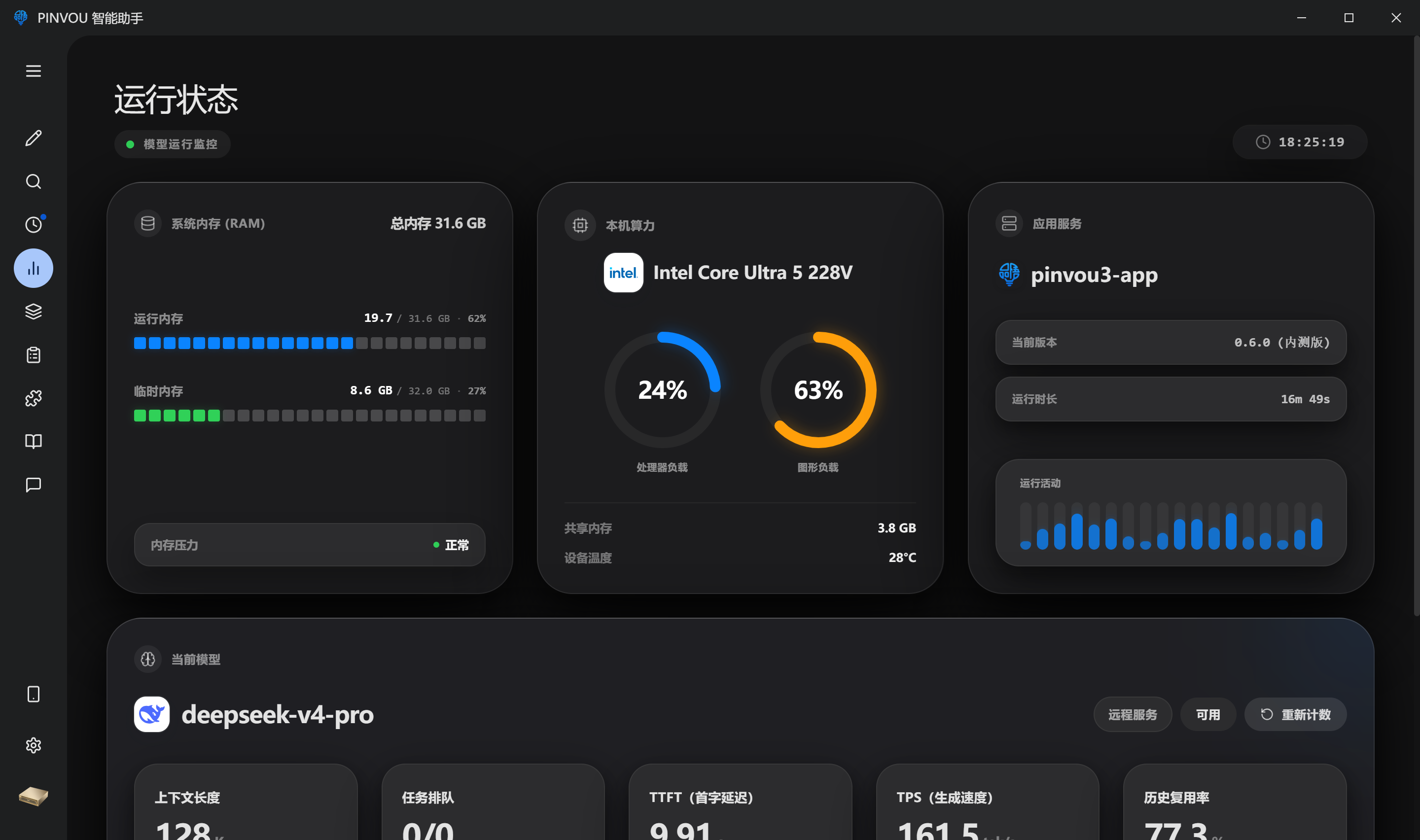
05 / Runtime Status

See how your local AI is running

Monitor device resources, application services and models to understand workload and diagnose connection or performance issues.

  • Confirm local computing resources and application services are working properly.
  • Observe model availability and the status of current tasks.
  • When issues arise, check the device, model, connection and task layers in order.
PINVOU runtime status interface illustration
Runtime Status · PINVOU Interface

Next, connect your model

Choose a model configuration suited to your tasks, install PINVOU and connect it to start working.